Installation
To install QuPath, you should first download the appropriate version for your operating system (more on that below) from the QuPath website.
QuPath isn’t currently a signed application. Over the past few years, security changes on Windows & Mac make installing any unsigned application a bit more difficult. This page can help you navigate the challenges.
Why is this complicated?
Since your operating system (presumably) has your best interests at heart, we don’t recommend circumventing its security settings routinely. However, as an open source project, we don’t currently have the time and resources needed to distribute QuPath as a signed/notarized app and avoid this awkwardness.
Windows
On Windows, you have two options when downloading QuPath:
Windows installer (msi): use this if you want to install QuPath, so that it appears in the Start menu like most apps
Windows portable (exe): use this if you want to just unzip a folder containing QuPath, and run it from there - with no further installation needed
Important
QuPath requires 64-bit Windows. Running QuPath on 32-bit Windows is not supported.
Installing the Windows .msi package
Double-click to launch the installer.
Windows tries to protect you from software it does not know, so you’ll probably see a scary-looking warning whenever the QuPath installer is first run:
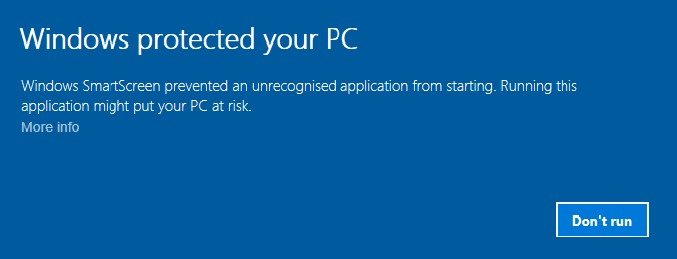
Windows warning
If you would like to get past this screen, press ‘More info’ and the option to ‘Run anyway’ appears.
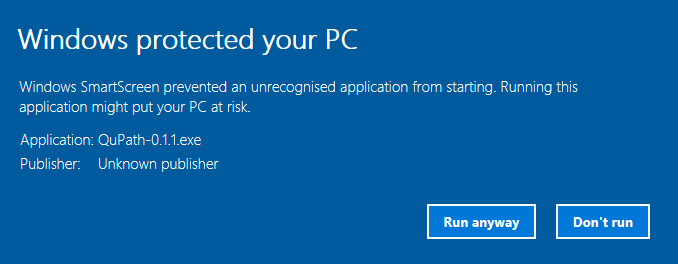
Windows warning run anyway
Sometimes, you won’t see any ‘More info’ button. In such situations, you can try to right click on the file, click on ‘Properties’, and tick the ‘Unblock’ checkbox:
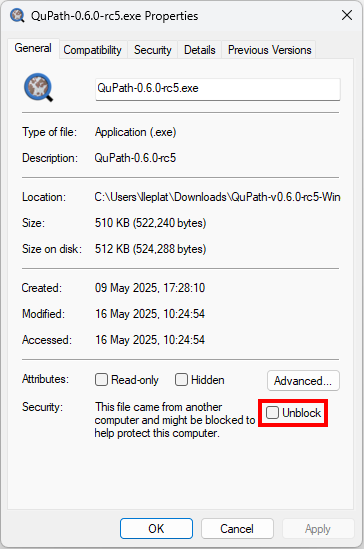
Unblocking the QuPath file
The installer won’t start!
If the QuPath installer does not start at all, you may not have administrator privileges on your computer - and therefore cannot install it.
Try downloading the .zip file instead, which should not need such privileges.
Installing the Windows .zip package
Right-click on the .zip file and choose to extract all the contents. This should give you a normal folder containing QuPath’s files.
Double-click on either QuPath.exe or QuPath (console).exe to start QuPath.
The first time you try this, you might see similar warning dialogs to those shown with the .msi above.
QuPath or QuPath (console)?
On Windows, you can either run QuPath.exe or QuPath (console).exe.
The difference is that QuPath (console).exe will also open a small window that contains QuPath’s log messages.
The console can be useful for debugging problems, or when using the Command line.
QuPath won’t launch!
If you can’t launch QuPath, make sure that you aren’t trying to launch from inside the .zip file. It’s important to right-click and extract the contents of the .zip file first.
macOS
On macOS you also have two options when downloading QuPath:
macOS Intel (pkg) this should work on all recent Macs - both with Intel processors or Apple Silicon. If you aren’t sure, this is the default option to choose.
To run the Intel version on Apple silicon, you’ll need to have Rosetta 2 installed. There is a good chance you already have it (e.g. if you’re using any other software written for Intel processors). If not, there are more details on Apple’s website.
macOS Apple silicon (pkg) this only runs on recent Macs using Apple Silicon (e.g. M1, M2, M3 or M4 processors).
The big advantage is that it runs much faster than the Intel version on supported computers.
The big disadvantage is that Bio-Formats doesn’t yet support Apple silicon - which means that a small number of file formats won’t work. The most relevant of these are .czi images from Zeiss Axioscans using JPEG-XR compression.
Not sure - install both!
If you have a Mac with Apple silicon, it’s possible to install both the Intel and Apple silicon versions of QuPath and run them both. The type of build is included in the .app file name (either x64 for Intel, or aarch64 for Apple silicon) to help you distinguish between them.
Installing on macOS 15 and later
Double-click the .pkg file to try to open it.
You will likely see a message like this:
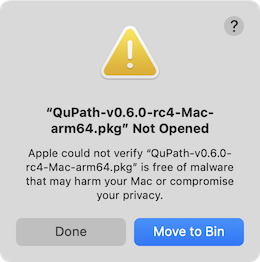
macOS damaged warning
Click Done and QuPath won’t start.
The workaround is hidden under .
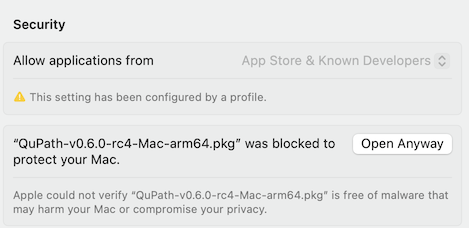
macOS Security & Privacy
There, you should find the name of the QuPath file you tried to open, with a button to Open Anyway. Clicking that, macOS will make one more attempt to stop you:
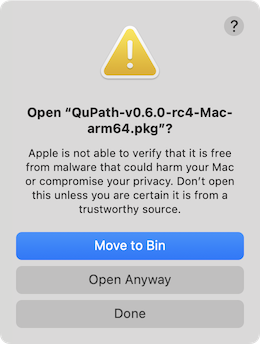
macOS Open Anyway dialog
If you choose Open Anyway again, QuPath’s installer should start.
Note that these steps are only required for the first installation. Afterwards, QuPath should work normally.
Installing on macOS 14 and earlier
Right-click the .pkg file, then choose ‘Open’.
You might need to do this twice.
If you see the message that QuPath cannot be opened because the developer cannot be verified, you can try right-clicking on the QuPath icon and select Open from the popup menu that appears.
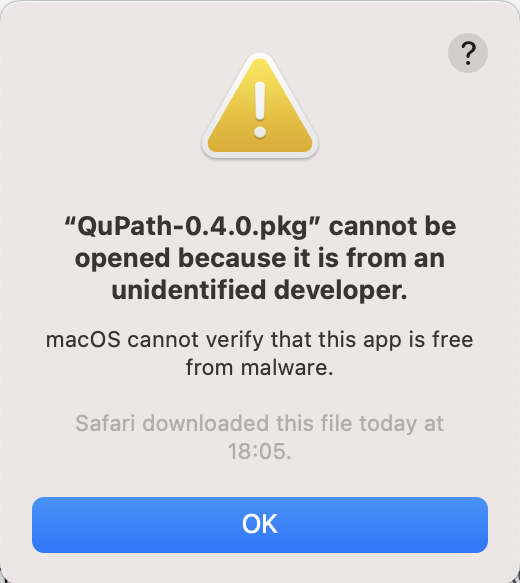
Gatekeeper on macOS on double-click
You should then see an option to open QuPath that should work.
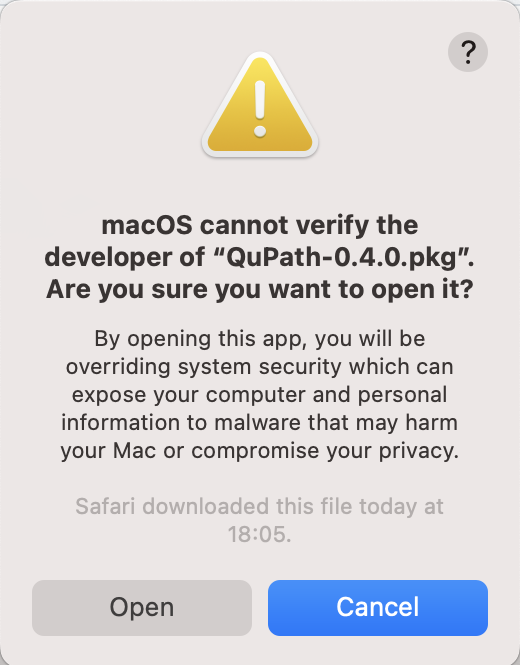
Gatekeeper on macOS after right-clicking and selecting ‘Open’
You may also need to right-click and choose open the first time you run the QuPath app after installation. Double-clicking should work as normal once it has been run once.
Linux
Download and extract the .tar.xz file.
You might have to use chmod u+x /path/to/QuPath/bin/QuPath to make the launcher executable (but you might not).
QuPath for Linux was compiled on Ubuntu - with best efforts made to include all dependencies, so you shouldn’t need to install anything else.
Running from source
If all else fails, you can try Building from source - which should work on Windows, macOS and Linux.