Extensions
QuPath supports adding new features via extensions. These are basically extra plugins that QuPath can work without - but which are often very useful.
The big advantage of extensions is that they make it possible to add new features to QuPath without needing to update the whole software.
Finding extensions
You can find the list of extensions developed by the QuPath team by clicking on in QuPath. This will show the extension manager that provides options for installing, updating, or removing extensions.
Which extensions should I add?
Some key extensions from the QuPath team are:
🦠 InstanSeg – better cell segmentation with deep learning
🤖 Deep Java Library – more deep learning support (required for InstanSeg!)
🔬 WSInfer – patch-based deep learning inference
☁️ OMERO – work directly with images stored on OMERO
You can also find extensions developed outside of the QuPath team:
On the user forum, especially by searching the tag qupath-catalog.
By searching for QuPath on GitHub.
Note
Extensions are installed in the QuPath user directory. If it’s not already set, QuPath will prompt you to select a folder. You can change it later under , but be sure to copy any content you need to the new folder.
Managing extensions with the extension manager
The easiest way to install, update, or remove an extension is to use the extension manager. You can open it by clicking on in QuPath.
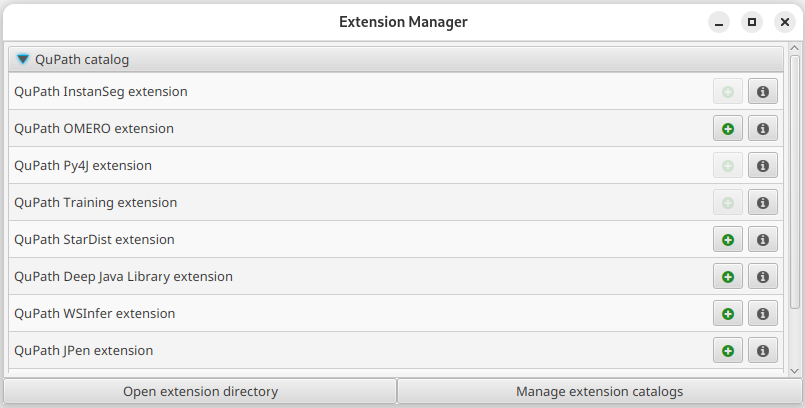
The extension manager window
There, you will see a list of extensions grouped by “catalog”.
A catalog typically represents a collection of extensions developed by a specific group of people. By default, you will only see the “QuPath catalog”, which contains extensions developed by the QuPath team.
If the extension you want is present in this list, you can go to the next section. Otherwise, click on Manage extension catalogs in the extension manager. This will open the extension catalog manager window.
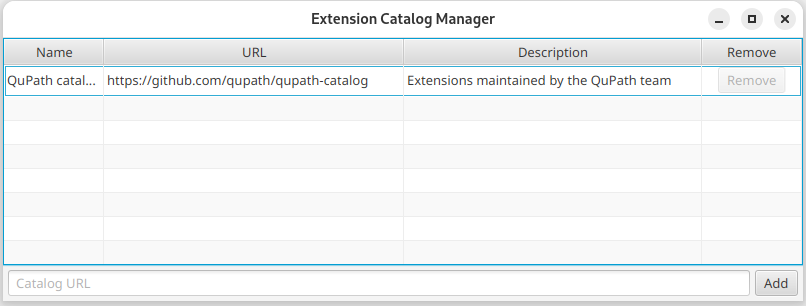
The extension catalog manager window
There, to add a catalog, enter the URL of the catalog and click on Add.
The URL will usually be a link to a GitHub repository containing a catalog.json file, provided by the author of the extension.
Note
If you are a QuPath extension developer and want to create your own catalog, you will find all necessary information on the GitHub page of the catalog model.
Sometimes, the extension you want to install is not present in a catalog. In that case, see the Managing extensions without the extension manager section.
Installing extensions
Installing an extension with the extension manager is very easy. You just need to click on the + green button next to the extension name. This will show the installation window.

The extension installation window
There, you can select the extension version and whether to install optional dependencies. Not always present, optional dependencies are additional files that may add features to the extension (refer to the extension documentation for more information).
When you click on Install, the extension files will be downloaded and added to your QuPath user directory. Often the extension will be ready to use immediately, but it’s generally a good idea to restart QuPath in case it needs to do any extra work at startup.
Removing extensions
Once an extension is downloaded, new buttons will appear next to the extension name.

The extension manager window with one installed extension
Simply click on the - red button to remove the extension. You should then restart QuPath.
Updating extensions
Sometimes, an extension you have installed can be updated.
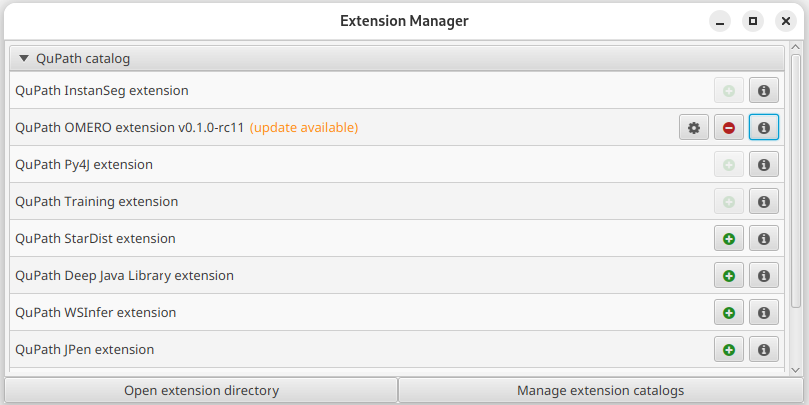
The extension manager window with one installed extension that can be updated
In that case, click on the cog button next to the extension name. This opens the edit extension window.

The edit extension window
This window is similar to the extension installation window, where you can specify the version and whether to install optional dependencies. Select the newest version and click on Update. You should then restart QuPath.
Managing extensions without the extension manager
Some extensions are not present in any catalog. In that case, you will have to manually manage them.
Installing extensions manually
Extensions are usually hosted on a GitHub repository.
There, you will find instructions on how to install the extension.
It usually consists of downloading a file that ends with .jar from the Releases section of the GitHub repository.
If you drag this onto QuPath’s main window, QuPath should copy it to your QuPath user directory. You can also manually copy the jar to your QuPath user directory.
Often the extension will be ready to use immediately, but it’s generally a good idea to restart QuPath in case it needs to do any extra work at startup.
Caution
Nothing prevents you from manually installing an extension that is already installed with the extension manager. However, this should be avoided.
Removing extensions manually
Once you have manually installed an extension, it should appear in the extension manager (which can be open by clicking on in QuPath) at the bottom after all catalogs.
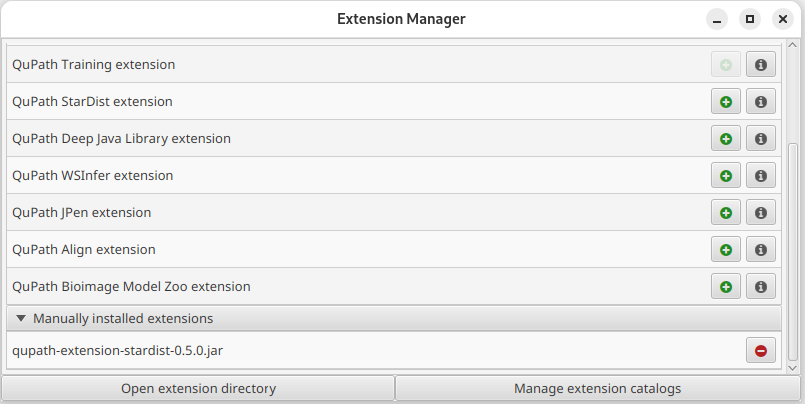
The extension manager window with a manually installed extension
There, you can click on the - red button to remove the extension. You should then restart QuPath. Alternatively, you can delete the jar file of the extension from your QuPath user directory.
Updating extensions manually
Manually installed extensions can’t be easily updated. You have to remove them and install them again with the newer version.